Public developments and original analysis · Announcement date: · Sources
In an order inquiry screenshot from the AWS Administrator Guide, two fields on one form are in different states. Category has accept and reject controls, while Order number already contains a value. On November 23, AWS announced that Amazon Connect Customer AI agents can fill fields when a step-by-step guide opens and suggest updates during a live conversation. Representatives can handle suggestions individually or in bulk and edit them before submitting. The feature moves information from the conversation into the form the representative will use. The design decision is how far to let it go for each field.
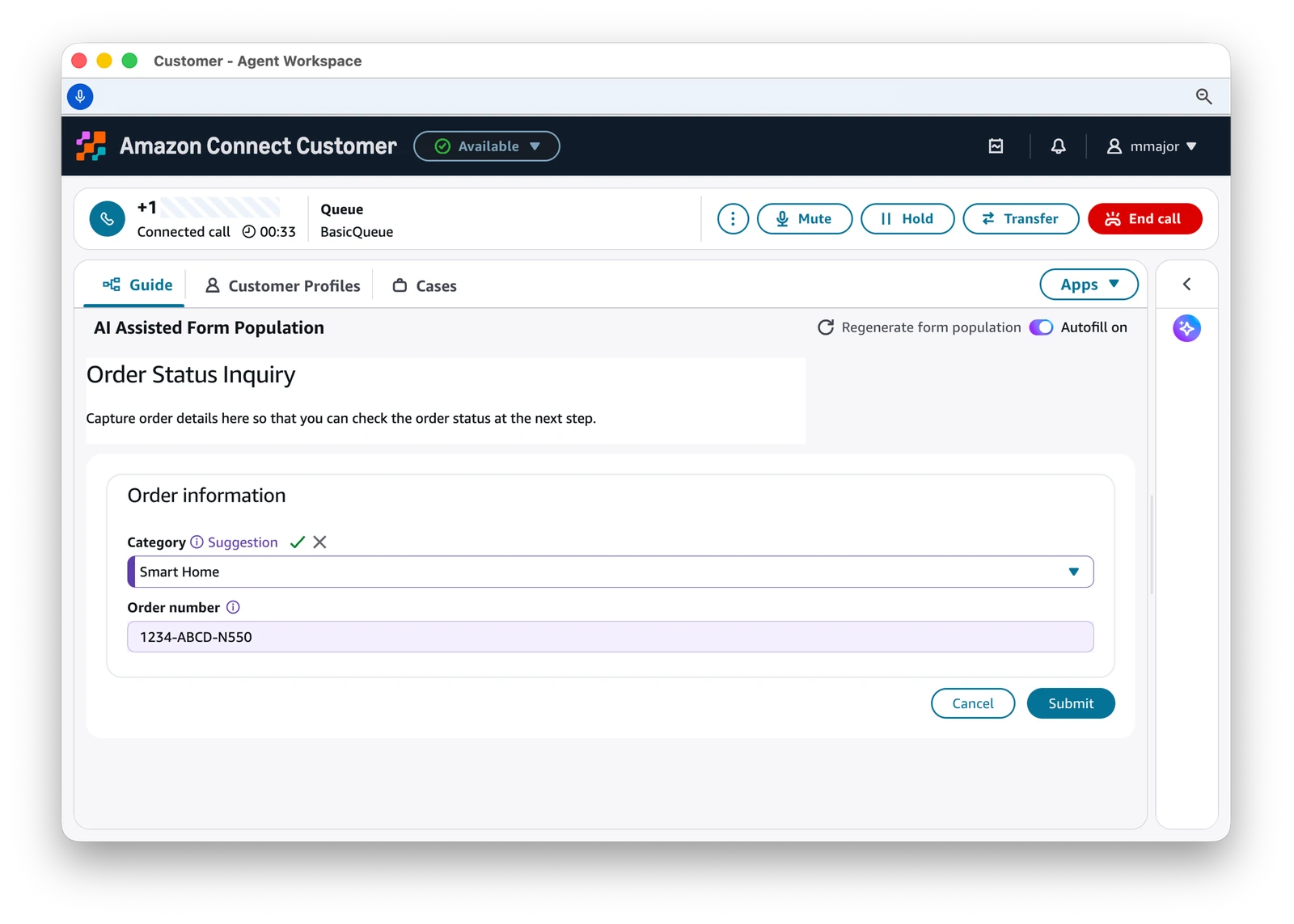
AWS supports this form population for voice and chat contacts, with email and task contacts outside the documented scope. The guide calls for an assistant session, a live transcript, a configured guide and relevant permissions. The announcement lists nine regions across the United States, Canada, Asia Pacific and Europe. Auto accept inputs is configurable per field. When enabled, a suggestion goes directly into the form and can still be edited. When disabled, the representative can accept or reject the value. The interface also distinguishes missing information from a value that does not fit the field format. The order number in the screenshot illustrates one configuration a team can choose.
How to review a replacement shipment form
Suppose a customer calls for a replacement part. The form asks for the order, fault category, part model, shipping address and confirmation to send. The customer reports a faulty sensor, names two orders and only at the end asks for shipment to a different warehouse. The fault category can be prefilled to help route the case and corrected after the representative checks the model. The order should resolve to a real record, and the representative needs to identify which of the two orders applies. The part model tells the warehouse what to pick, the address determines where to send it and the send confirmation changes the state of the case. Each needs a different kind of evidence.
The cost of a wrong category depends on what follows submission. If the label is used for retrospective reporting, a later review can usually correct it. If choosing that label automatically assigns work to another team, it already affects operations. Keep it as a suggestion in that setting and let staff check it against the conversation. When a reliable catalog can identify the model from an order, pull that value from the order and use the AI to capture what went wrong. Avoiding a second guess about a known value can save more work than asking a representative to click through every field.
There may be three addresses in the same call. The caller can describe the original destination, the tracking system can show the current drop-off and the representative can confirm where the replacement should go. Label the editable field for the destination confirmed for this replacement, and show the original order address separately as reference. If the warehouse has yet to establish where it can deliver, leave that check open. A plausible address extracted from a conversation can still be the wrong basis for fulfillment.
Customers rarely provide everything at once. They might give an old address and correct it later. A representative might open the guide while waiting for the warehouse to respond. Early prefill saves typing, but a populated field can make an early guess look settled. Include cases where people change an answer, mention multiple orders, use similar model names or omit a required detail. A representative should be able to see which values still need confirmation, especially fields that trigger shipping, booking or potentially costly rework. An empty field and a follow-up question can be the right outcome.
Measure the case through completion
Test two groups of fields. For frequent labels and short notes, measure entry time and how often staff fix errors. For orders, addresses and serial numbers that determine fulfillment, check the final business record against what the customer confirmed. Track repeat shipments, address changes and repeat calls. The number of filled boxes describes activity, while the savings depend on checking time and downstream correction work. A completed form that sends the warehouse back to ask the same question has moved the work to another team.
Keep pulling dependable information from the system that records it. Apply autofill to information that arises in conversation, repeats often and is easy to correct. Give fields that affect a commitment a clear review step. In a complex support call, a useful form should help the case reach fulfillment smoothly and let the next representative tell what the customer actually confirmed.
Sources
Mokyun Editorial · neo@mokyun.com
